Download Your First Driver
In this guide, we'll walk you through how to download the driver for your required data source. Drivers are essential for enabling DataFuse AI to connect to various external systems such as databases, cloud services, and APIs.
Let’s get started!
Step 1: Navigate to the Driver Page
First, you need to access the Driver page:
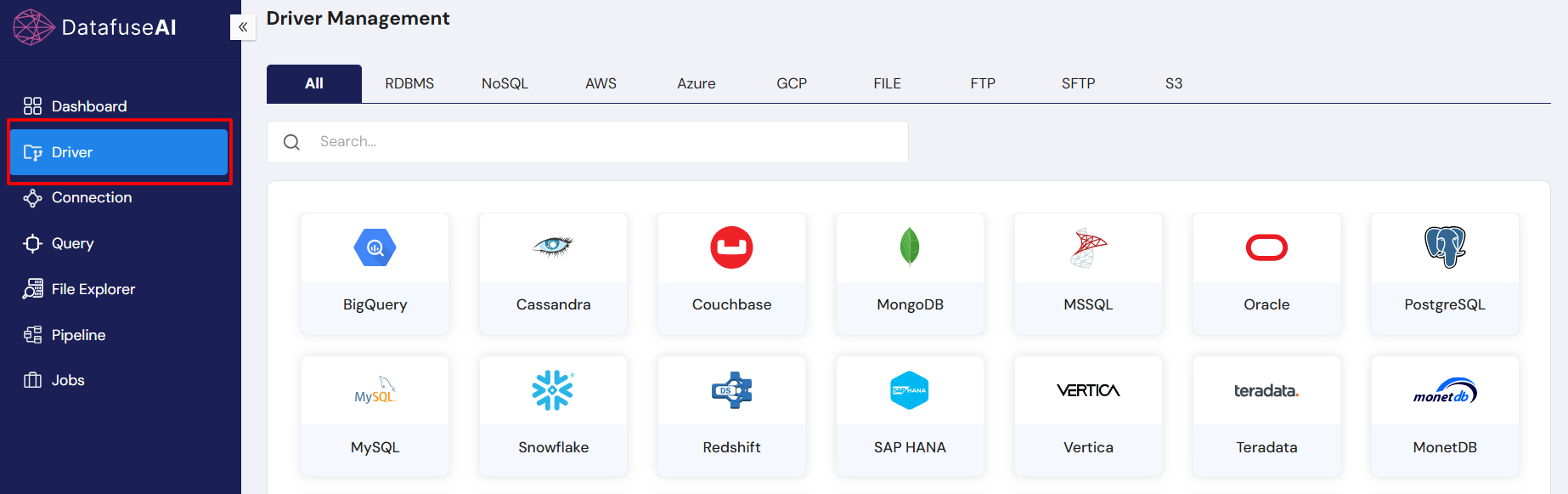
From the left-hand navigation sidebar, click on Driver to open the Driver page.
Step 2: Choose the Driver You Need
Once you're on the Driver page, you'll see drivers organized by category.
Driver Categories
| Category | Drivers |
|---|---|
| RDBMS | MSSQL, Oracle, PostgreSQL, MySQL, Snowflake, Redshift, SAP HANA, Vertica, Teradata, MonetDB, CockroachDB, MariaDB, IBM DB2 |
| NoSQL | BigQuery, Cassandra, Couchbase, MongoDB, Azure Cosmos NoSQL, Azure Cosmos MongoDB |
| AWS | RDS MariaDB, RDS MSSQL, RDS MySQL, RDS MySQL Aurora, RDS Oracle, RDS PostgreSQL Aurora, RDS PostgreSQL, RDS IBM DB2 |
| Azure | Azure MySQL, Azure PostgreSQL, Azure SQL Server, Azure Cosmos PostgreSQL |
| S3 | S3 |
| FTP / SFTP | FTP, SFTP |
| File | Upload |
The available list will grow over time, offering more options as DataFuse AI continues to support additional data sources.
Example: MySQL Driver
If you need the MySQL driver:
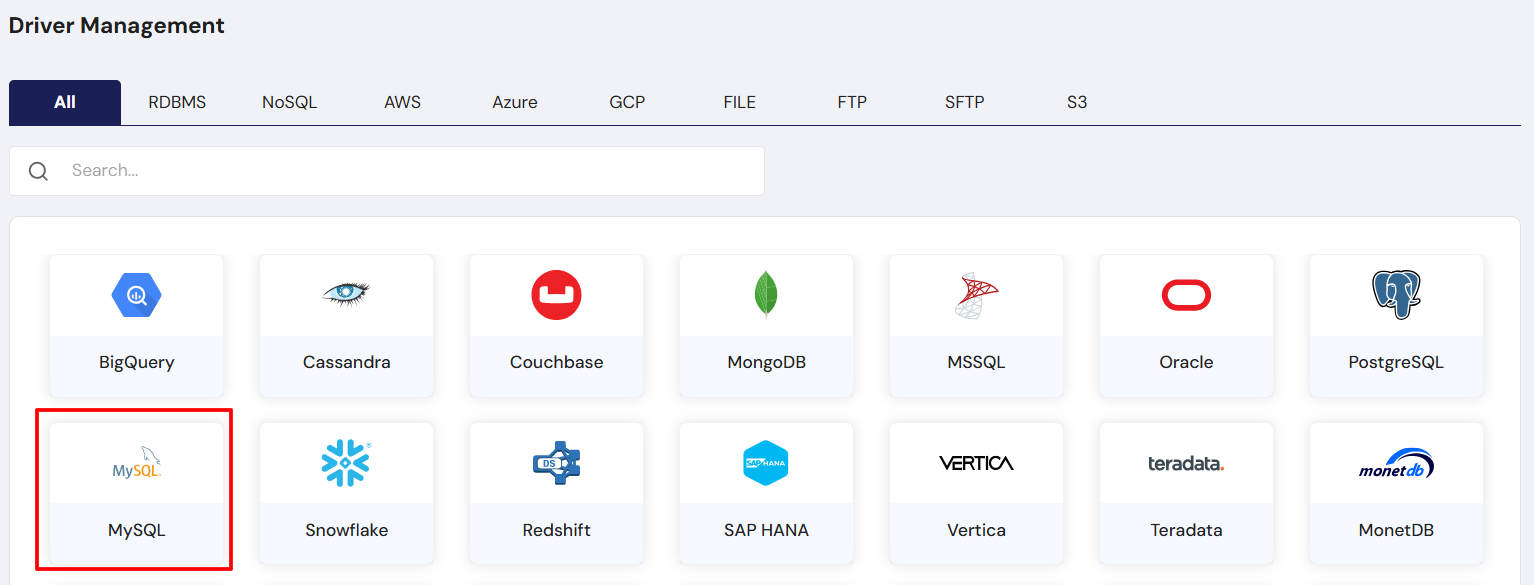
- Scroll through the list of drivers and select MySQL.
Step 3: Download the Driver
Once you’ve selected your driver (e.g., MySQL), follow these steps:
- Click on the Download button next to your chosen driver.
- The download will start, and you will receive the required driver files to set up your connection.

Make sure to download the appropriate driver version based on your system and requirements.
Next Steps
After downloading your driver, you’re ready to upload it and create a Connection Profile to link it with your data sources.
To learn how to create your first profile, visit the Quick Start Guides - Create Your First Connection Profile.
For detailed information on managing and uploading drivers, check out the Core Modules - Driver
With the correct driver installed, you’re now ready to connect your data sources to DataFuse AI.
Happy connecting! 🚀