Engine
The Engine module is the backbone of DataFuse AI’s data processing capabilities. It is where all your data operations, including executing queries, running transformations, and powering pipelines, occur. Configuring and managing engines is essential for seamless data operations, allowing the platform to interact with a wide variety of data providers and compute resources.
In this section, we will provide a detailed guide to managing engines within DataFuse AI. You'll learn how to add, configure, and troubleshoot engines, ensuring that your data processing tasks are executed efficiently and reliably.
What is an Engine?
An Engine in DataFuse AI refers to the computational system responsible for running queries, performing data transformations, and handling pipelines. Engines can connect to a variety of external data processing providers such as Databricks, Livy, or DataFuseAI, each with specific connection requirements.
Each engine has an associated engine profile that defines the settings, including the provider, authentication methods, and connection configurations. The engine’s configuration plays a crucial role in ensuring that data is processed effectively and securely.
Key Components of an Engine Profile:
- Profile Name: The unique name given to the engine profile (e.g., "Databricks Engine").
- Provider: The service powering the engine (e.g., Databricks, Livy, or DataFuseAI).
- Credentials: The required authentication details for the engine (e.g., API tokens, client IDs, or usernames).
- Cluster Categories: Defines the categories or types of clusters available for the engine (e.g., Compute Cluster).
- Cluster: The specific compute resource associated with the engine for data processing.
- Authentication Type: Determines how the engine will authenticate to its provider (e.g., Normal, Nginx, LDAP).
Accessing the Engine Page
To manage engines in DataFuse AI:
- Navigate to the Settings Page: Click the Settings icon located in the top-right corner of the platform, near your profile icon.
- Select Engine: From the dropdown menu, select Engine under the Settings tab to open the Engine management page.
Once you’re on the Engine page, you will see a list of all engines set up within your tenant.
You can configure multiple engines within your environment. The engine selected for a task determines how queries, pipelines, and jobs are processed. Be sure to select the appropriate engine for each operation to ensure optimal performance.

Detailed Guide to Set Up Engine
Setting up an engine is an essential step in DataFuse AI, enabling the execution of data operations. Below is a guide for setting up and configuring your first engine.
Step 1: Navigate to the Engine Page
To access the Engine management page:
- From the main dashboard, click on the Settings icon in the top-right corner.
- Select Engine from the dropdown menu.
This will open the Engine page, where you can view and manage all configured engines.

Step 2: Add a New Engine
To add a new engine:
-
Click on the Add New Engine button in the top-right corner of the page. This will open a form where you will configure the new engine profile.
-
Fill out the Engine Profile Details:
-
Profile Name: Enter a unique name for your engine (e.g., “Databricks Engine”).
-
Provider: Choose the engine provider. Options include:
- Databricks
- Livy
- DataFuseAI After selecting the provider, the configuration options will adjust based on the chosen provider.
-
Example 1: Setting Up a Databricks Engine
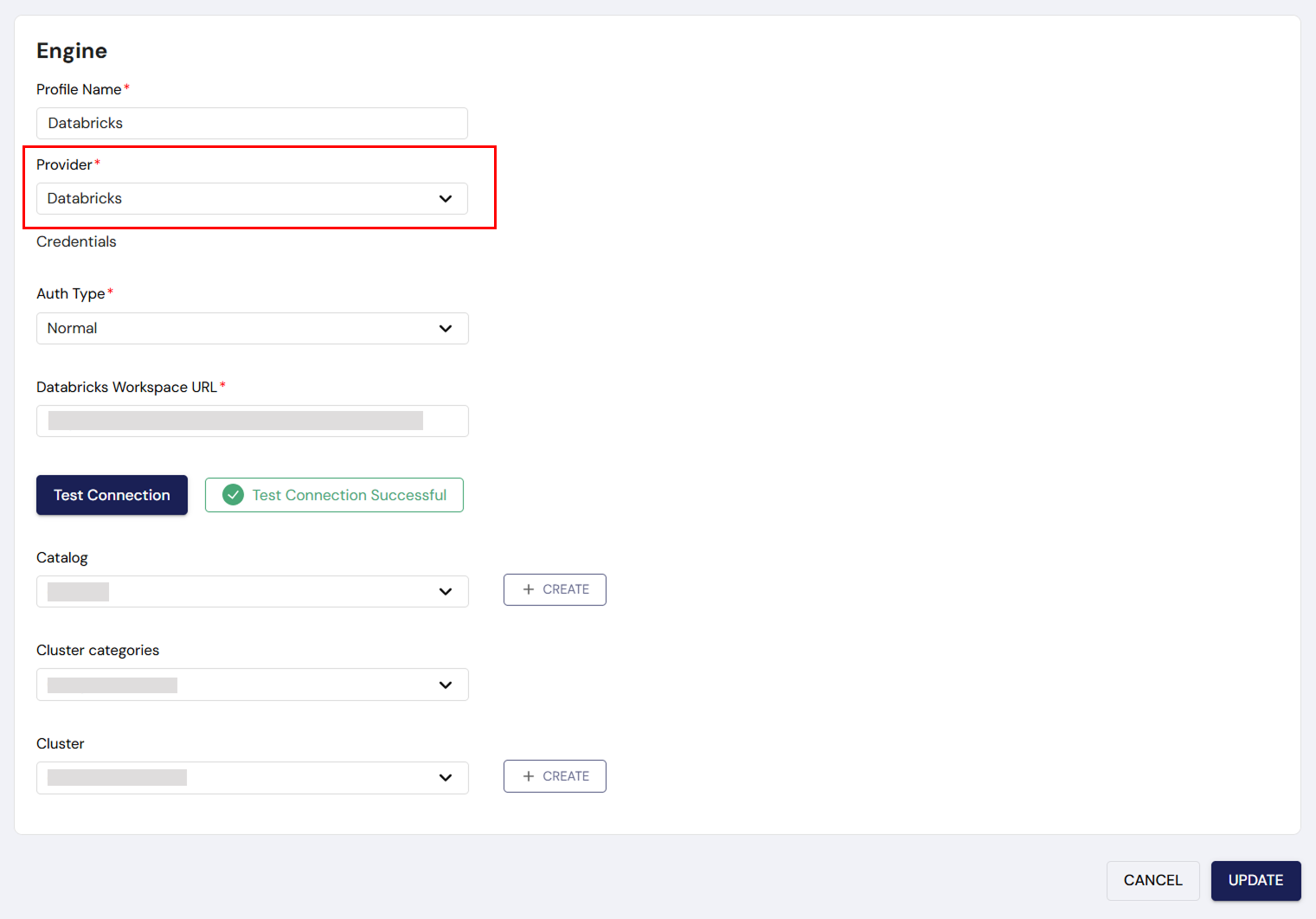
When selecting Databricks as the provider, you will encounter the following configuration fields:
-
Authentication Type:
- Normal: This is the default and simplest authentication type. It allows you to quickly connect to Databricks using a Personal Access Token.
- Service: If you choose Service authentication, you will need to provide more specific credentials like client ID and client secret for service-level authentication.
-
Databricks Workspace URL:
- Enter the URL for your Databricks workspace (e.g., https://test-1234-abcd.databricks.com).
-
Databricks Personal Access Token:
- Enter the API token generated from your Databricks portal to authenticate the connection.
-
Test Connection:
- Click on Test Connection to verify that the engine is successfully connected to Databricks.
-
After the connection test is successful, configure the following:
- Catalog: Choose the appropriate catalog (e.g., Default Catalog) for querying and interacting with data.
- Cluster Categories: By default, this is set to Compute Cluster. Select this unless you need specific configurations (e.g., Job Cluster).
- Cluster: Choose an existing cluster or click Create New to set up a new cluster. Ensure the cluster is configured with appropriate resources based on your workload needs (e.g., select node types, scaling options).
-
Save: Once all fields are filled out, click Save to finalize the Databricks engine setup.
Example 2: Setting Up a Livy Engine
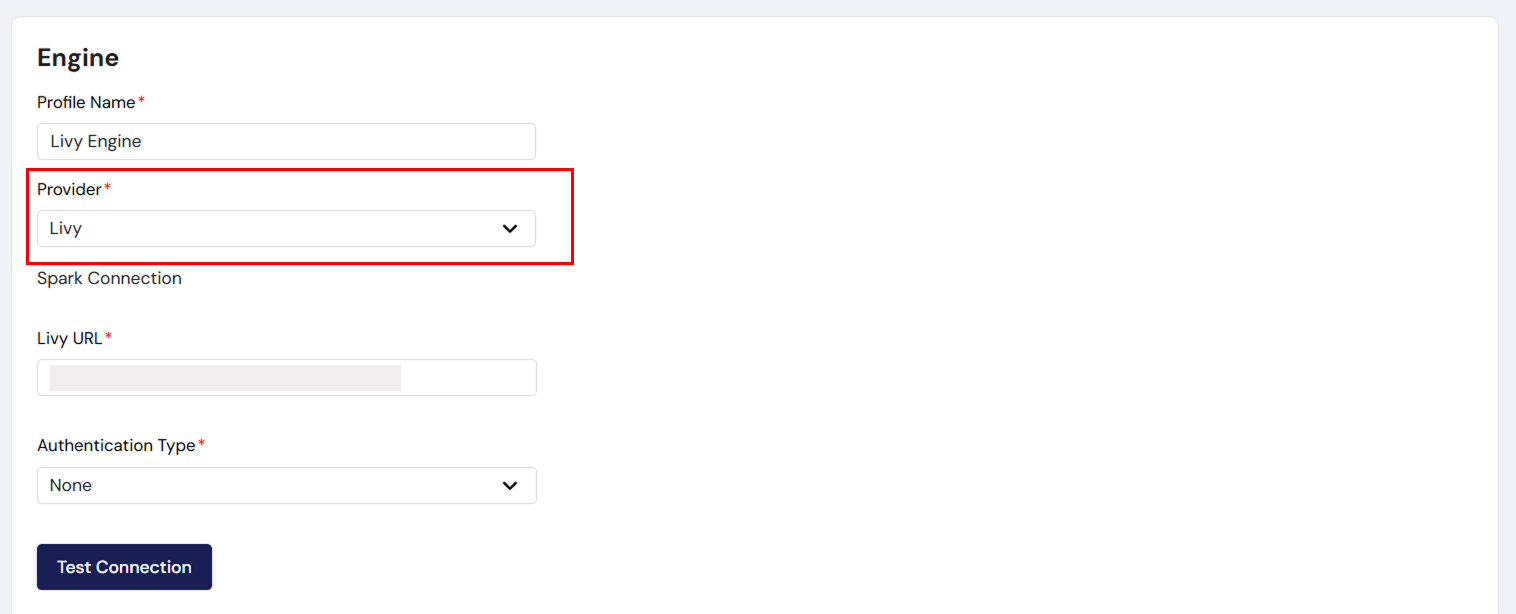
If you select Livy as the engine provider, follow these steps:
-
Livy URL:
- Enter the URL of your Livy instance (e.g., http://:8998).
-
Authentication Type:
-
None: If no authentication is required, leave the authentication fields blank.
-
NGINX or LDAP: If authentication is required, select the appropriate type:
- NGINX: Typically used when your Livy instance is secured via NGINX reverse proxy. You’ll need to provide username and password.
- LDAP: Select this if your Livy instance is connected to an LDAP directory for user authentication.
-
-
Livy Username & Password:
- Enter the username and password associated with your Livy instance if using NGINX or LDAP for authentication.
-
Test Connection:
- Click Test Connection to verify that DataFuse AI can successfully connect to the Livy instance.
-
Save: After confirming the connection is successful, click Save to finalize the Livy engine setup.
Example 3: Setting Up a DataFuseAI Engine
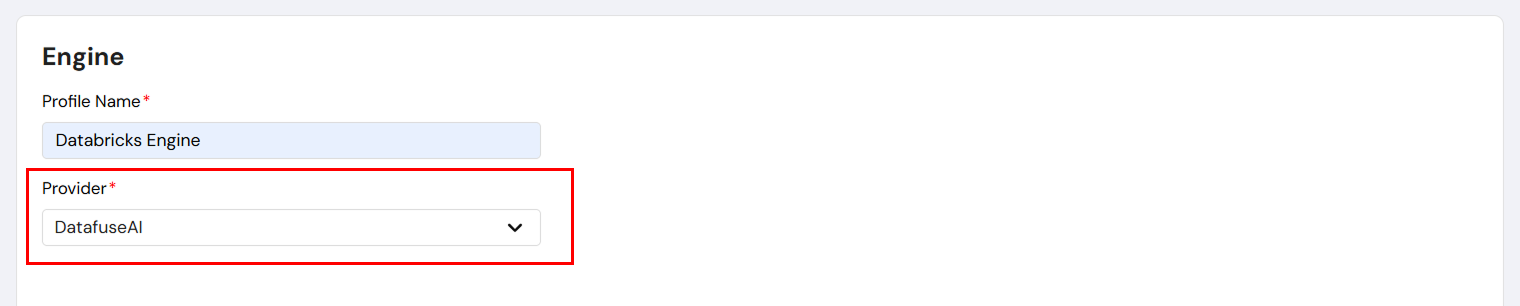
For DataFuseAI as the provider:
- Provider: Select DataFuseAI from the provider dropdown.
- No additional configuration is required, as the engine is pre-configured by DataFuse AI.
- Save: Click Save to complete the engine setup.
Step 3: Using Your Engine
Once the engine is created and saved, you can begin using it for various tasks:
- Run Queries: Execute SQL or NoSQL queries to retrieve and manipulate data.
- Build and Execute Pipelines: Create and automate data pipelines to manage and process large datasets.
- Create Jobs: Automate the execution of data operations at scheduled intervals for greater efficiency.
Once the engine is configured, DataFuse AI will handle all data processing tasks, including running queries and powering pipelines, while you focus on data transformation and analysis.

Editing Engine Profiles
If you need to modify an existing engine profile, follow these steps:
- Navigate to the Engine Page: Go to Settings > Engine.
- Select Engine to Edit: In the Engine list, click on the action dropdown next to the engine you want to modify.
- Click "Edit": This opens the engine configuration page where you can make changes.
- Modify the Details: Change the engine profile name, provider, or connection settings as needed.
- Test Connection: After making edits, click Test Connection to ensure that the connection is still valid.
- Save Changes: Once changes are made, click Save to apply the updates.
Setting an Engine as Default
To set a specific engine as the default for processing tasks:
- Navigate to the Engine Settings: Open the Engine management page.
- Select the Engine to Set as Default: Click the checkbox next to the engine you want to designate as the default.
- Set as Default: From the action dropdown, select Set as Default. The engine will now be marked as the default, used for all operations unless specified otherwise.
Deleting Engine Profiles
If an engine is no longer needed, it can be deleted:
- Navigate to the Engine Settings: Go to Settings > Engine.
- Select the Engine to Delete: Click the action dropdown next to the engine you wish to delete.
- Click "Delete": Confirm the deletion. The engine profile will be permanently removed.
Deleting an engine will break any jobs, pipelines, or queries that depend on it. If a scheduled job attempts to run a pipeline that references a deleted engine, it will fail.
Please ensure the engine is not in use before deleting it.
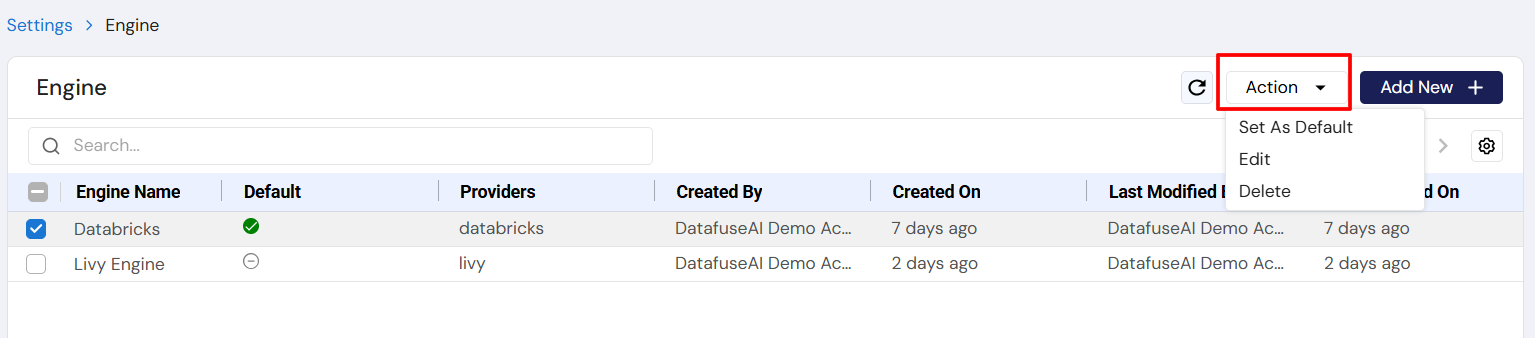
Key Functionalities in Engine Management Pages
The Engine Management page allows for easy and efficient management of all engines:
- Engine List: Displays all engines, with key details like Engine Name, Provider, Created By, and Last Modified On.
- Add New Engine: Allows for adding new engines to the system.
- Action Dropdown: Offers options to Set as Default, Edit, or Delete engines.
- Search Function: A search bar allows you to find engines by profile name or provider.
Engine Connection Management
Each engine requires different connection configurations based on the provider:
Databricks:
- Workspace URL: The URL for your Databricks workspace.
- Personal Access Token: Used for authentication when connecting to Databricks.
Livy:
- Livy URL: The URL of your Livy instancze.
- Authentication: Choose between None, NGINX, or LDAP for authentication.
- Livy Username & Password: Required for authentication if using NGINX or LDAP.
Other Providers:
For DataFuseAI, Synapse, and Kubernetes, connection settings will include URLs, client IDs, tokens, and other relevant credentials.
Connection Testing
The Test Connection feature ensures that the engine is properly configured and can successfully connect to the provider.
- Test Connection Button: Located within the engine profile settings, this button verifies the connection’s validity. A green checkmark indicates a successful connection, while an error message appears if the connection fails.
- Connection Status: After testing, ensure that the connection status shows successful before proceeding with data operations.
Troubleshooting Connection Issues
If the connection fails, the following steps can help troubleshoot:
- Check Credentials: Ensure that API keys, tokens, or client IDs are correctly entered.
- Test Connection Again: Retry the Test Connection feature after correcting any settings.
- Network Issues: Verify that there are no network restrictions blocking the connection.
- Authentication Errors: If using LDAP or NGINX, ensure the correct username and password are provided.
Conclusion
Managing engines within DataFuse AI is vital for ensuring smooth data processing operations. By following this guide, you can easily configure, test, and manage engines for your queries, pipelines, and job executions. With the Engine Management interface, you have the tools needed to streamline your data workflows, ensuring maximum efficiency and reliability in your data operations.