File Explorer
1. Overview of the Module
1.1 Introduction
The File Explorer module provides a virtualized storage solution that allows users to manage their instances of key modules within DatafuseAI. This includes files related to Connection Profiles, Pipelines, Jobs, and Saved Queries. The File Explorer is designed to streamline the process of organizing, sharing, and interacting with these files, all within a user-friendly interface.
The core function of the File Explorer is to enable users to easily navigate through their system files and custom folders, as well as interact with their stored data. Each user has a dedicated folder that resides under a Root/Users// directory, where individual folders for Connection Profiles, Pipelines, Jobs, and Saved Queries are organized by user email. This structure simplifies file management, enhances collaboration, and aids in sharing data with other users or groups within the same tenant.
Additionally, the File Explorer provides users with powerful features such as file upload (CSV, Excel, JSON), file movement (copy/move), file deletion (with a trash system), and sharing files with others. It ensures that all interactions with the system’s storage are both intuitive and organized.
1.2 Why is it Important?
The File Explorer module is crucial for several reasons:
- Organization: It offers a clear, well-structured view of all system files, making it easier for users to manage their data and instances.
- Collaboration: It allows for the sharing of files with other users, enhancing teamwork and data exchange within a tenant.
- Convenience: With features like search, file upload, and file management (copy, move, delete), the File Explorer streamlines workflows, saving time and improving efficiency.
- Seamless Integration: The File Explorer integrates deeply with the core DatafuseAI modules, ensuring that all users can efficiently interact with their system files across different contexts, from creating new profiles to managing jobs and queries.
1.3 Key Features in the Module
- Folder Management: The File Explorer allows users to create custom folders, upload files (CSV, JSON, Excel), and organize their files with ease.
- File Operations: Users can move, copy, delete, and restore files with a simple interface. Files that are deleted are moved to a Trash folder for potential recovery.
- Search Functionality: A powerful search feature allows users to quickly locate files and folders by name, facilitating efficient file management.
- Sharing Capabilities: The module provides robust file-sharing options. Users can share files and folders with others within the same tenant, with permissions such as read, write, or manage.
- Restore and Permanent Deletion: Files in the Trash can either be restored to their original location or permanently deleted, providing flexibility and control over file management.
1.4 Real-World Usage
The File Explorer module is typically used in the following scenarios:
- Organizing Instances: Users can easily organize their module instances (Connection Profiles, Pipelines, Jobs, and Saved Queries) in a structured manner, ensuring that data is easy to access and manage.
- Collaboration: Users can share files and folders containing key instances with other users in their tenant, allowing for collaborative work on shared data.
- Data Management: Users can upload new data files (e.g., CSV, JSON, Excel), move files around as needed, and manage system files without needing to use command-line tools.
- Workflow Management: The ability to organize and share critical files ensures that data flows smoothly across teams or individual workflows.
2. Module Concepts
2.1 File Explorer Structure
- Root Folder: The highest level of the File Explorer hierarchy. This folder contains all other user folders, shared folders, and the Trash folder.
- Users Folder: Under the Root folder, each user has a dedicated folder named after their email address. Inside this folder, users’ instances of modules (Connection Profiles, Pipelines, Jobs, and Saved Queries) are stored. Each user can organize their module instances in this personalized space, making it easy to access and manage their data.
- Shared Folder: A folder containing all files and folders that are shared with other users or groups within the tenant. Files placed here can be accessed by multiple users, streamlining collaboration within teams.
- Trash Folder: A special folder where deleted files are temporarily stored. Files in the Trash can either be restored to their original location or permanently deleted. This ensures that files aren't lost permanently by accident and provides a safety net for recovery.
2.2 Instance Storage Locations
Each user’s folder in the Users section contains subfolders dedicated to various types of system instances. These folders act as storage spaces for specific types of files, each relevant to a different module of DatafuseAI:
- Connection Profiles Folder: Stores user-specific connection profile instances. This includes all settings, credentials, and configurations needed to connect to various data sources and services within the system.
- Pipeline Folder: Contains instances of created pipelines, which represent sequences of data transformation and processing tasks. Each pipeline is a defined set of operations that manipulates or processes data to achieve a specific result.
- Job Folder: Stores information related to user-defined jobs, such as data processing tasks, batch jobs, and other automated workflows. These instances can be scheduled or triggered based on certain conditions.
- Saved Queries Folder: Stores user-defined queries that have been saved for later reuse. Saved queries allow users to quickly retrieve and execute frequently used database queries or data extraction commands without needing to recreate them each time.
2.3 Module Instance
A Module Instance refers to any specific entity or configuration within a module, such as a Connection Profile, Pipeline, Job, or Saved Query. Each of these entities is stored as an instance and can be interacted with in the File Explorer for purposes such as sharing, modifying, or deleting.
- Example of a Module Instance: When a user creates a new Connection Profile, that configuration (e.g., database credentials, connection settings) is stored as an instance of the Connection Profile module. The same applies to Pipelines, Jobs, and Saved Queries—each represents a distinct instance within its respective module.
- Purpose of Module Instances: These instances are the core units of work and functionality within DatafuseAI. They are reusable, shareable, and can be easily managed by users to perform specific tasks or automations. Each instance is stored in the appropriate virtual folder within the File Explorer to ensure proper organization and access control.
2.4 Custom Folders and Files
- Custom Folders: Users have the ability to create custom folders within their directory. These folders can be named and organized according to the user’s preference, allowing for personalized structuring of files and instances. Custom folders are flexible, and users can move or rename them as needed to better organize their data.
- Uploaded Files: In addition to system-generated module instances, users can upload custom files (e.g., CSV, JSON, Excel) to their directory. These files can be uploaded into system folders (e.g., Connection Profiles, Pipelines, Jobs) or custom folders. Uploaded files can be used as input data for pipelines or jobs, or simply stored for reference and reuse in the platform.
2.5 File Operations
The File Explorer provides several essential file operations to help users manage their data and module instances efficiently. These operations enable users to interact with files in a variety of ways, ensuring that file management is both flexible and intuitive. Below are the detailed descriptions of each file operation:
-
Copy Folder/File: This operation allows users to duplicate a file or folder and place it at a different location within the File Explorer. Copying files is particularly useful for:
- Creating backups of important files.
- Organizing similar files across different directories.
- Sharing instances of modules across multiple user folders.
When a file or folder is copied, it retains its original content and structure, providing a duplicate instance that can be independently modified or shared.
-
Move Folder/File: The Move operation enables users to transfer files or entire folders from one location to another within the File Explorer. This helps users to:
- Reorganize their file system to reflect a more logical structure.
- Maintain a cleaner and more efficient file storage system without losing or duplicating data.
Unlike copying, the move operation removes the file from its original location and places it at the new destination, preserving the file's identity and associated metadata.
-
Delete Folder/File: When a file or folder is deleted, it is temporarily moved to the Trash folder, where it can be restored or permanently removed. This process provides a safety mechanism for accidental deletions. Key points:
- Files in the Trash can be easily restored to their original location if needed.
- If a file is left in the Trash or deleted permanently, it is removed from the system, and recovery becomes impossible.
- The Trash folder helps prevent permanent data loss by providing a window of opportunity to restore accidentally deleted files.
Once the Trash is emptied or a file is selected for permanent deletion, the file is fully removed from the system.
-
Restore Folder/File: A deleted file or folder, currently in the Trash, can be restored back to its original location within the File Explorer. This operation helps users recover files they may have accidentally deleted:
- Navigate to the Trash folder.
- Right-click on the file or folder and select Restore.
- The file or folder will return to its original location before it was deleted, preserving its name, structure, and metadata.
Restoring files is an essential feature for users who accidentally delete items and need to revert their actions without needing to recreate or re-upload the files.
-
Share Folder/File: The Share operation allows users to share files or entire folders with other users or groups within the tenant. Sharing enables collaborative work on shared data, and permissions can be tailored to specific needs:
- Read: The recipient can only view the file/folder without making any changes. This is useful for sharing reference material or read-only data.
- Write: The recipient can make changes to the file/folder, such as editing its content or moving it within their own directories. This is ideal for collaborative working on editable files.
- Manage: The recipient can manage the file/folder in its entirety, including renaming, deleting, and moving it. This permission level is suitable for users who need full control over the file/folder.
These operations ensure that users have complete control over their data, providing flexibility in managing files while maintaining secure access controls and promoting efficient collaboration across teams or groups within the same tenant.
3. Module UI Components and User Actions
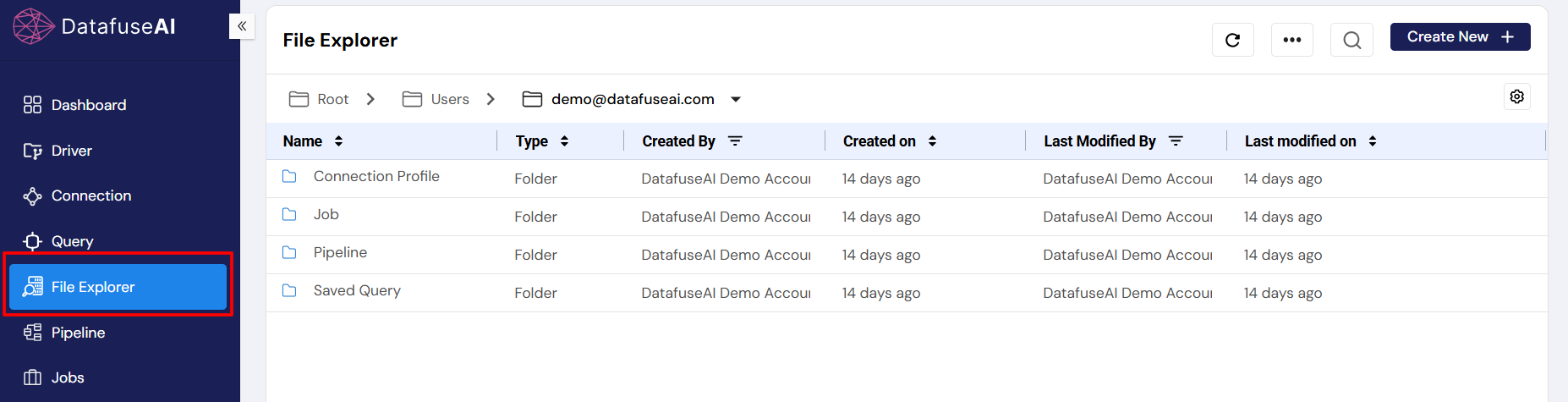
3.1 Navigating to the File Explorer Tab
After logging into the system, users can navigate to the File Explorer tab via the left sidebar. The first view displayed will show the user’s dedicated folder under the Root > Users > hierarchy. This view provides a quick overview of all user-specific folders, including:
- Connection Profile Folder
- Pipeline Folder
- Job Folder
- Saved Queries Folder
Users can perform actions such as copying, moving, deleting, and sharing files/folders directly from this view.
3.2 Create New UI Component
The Create New button, located in the top right corner of the File Explorer, offers several options:
- Create New Folder: Users can create a new folder to organize their files and instances.
- Upload File: Users can upload files in CSV, Excel, or JSON formats directly from their local system to the File Explorer.
3.3 Search Functionality
The search bar at the top of the File Explorer enables users to search for specific files or folders by name. The search is recursive, meaning it will look through the entire folder hierarchy, making it easy to locate a particular file or folder no matter where it is stored.
3.4 3 Dots UI Component
The three dots next to each file or folder offer additional options:
- Copy Path: Allows users to copy the file or folder path to the clipboard for easy reference.
- Download: If the file is of a valid type (Excel, CSV, JSON), users can download it directly to their local machine.
3.5 Trash Folder UI
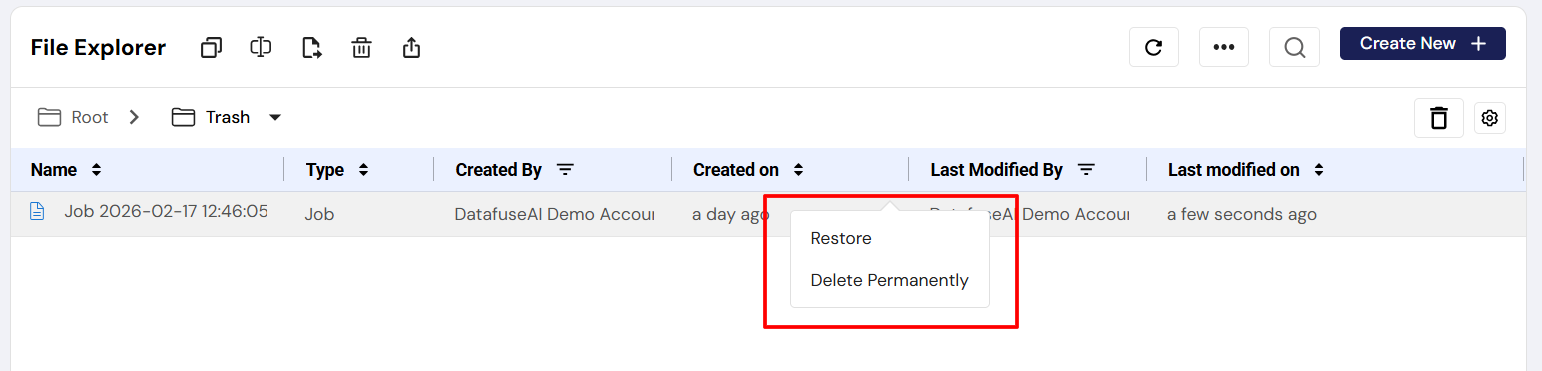
When files are deleted, they are moved to the Trash folder. Within the Trash folder, users can right-click on deleted files/folders and choose to:
- Restore: Moves the file or folder back to its original location in the File Explorer.
- Delete Permanently: Removes the file or folder completely from the system.
3.6 Empty Trash Icon
The Empty Trash icon allows users to permanently delete all items within the Trash folder.
4. Standard User Flow
The Standard User Flow within the File Explorer is designed to provide a seamless experience for users, allowing them to efficiently manage their files and module instances. Most users do not need to interact with the File Explorer on a regular basis unless necessary. However, when they do, the flow follows a logical progression of steps that allow for viewing, organizing, creating, sharing, and managing files and data within the system.
4.1 Viewing Files
The primary interaction with the File Explorer is to view the existing files and module instances that have been created. This includes Connection Profiles, Pipelines, Jobs, and Saved Queries. Typically, users will browse their file system to check the status of their created modules. This is a straightforward task that helps users assess what’s available in their folders and decide if any further actions are required. Since File Explorer is primarily used for viewing, this action is often the starting point when users need to interact with their stored data.
4.2 Creating New Instances
If users need to expand their system, they can create new instances directly from the File Explorer. This can include creating new Connection Profiles, Pipelines, Jobs, or Saved Queries. The Create New button offers a simple interface to set up these new module instances, which can be customized as per the user’s requirements. This functionality allows users to build new workflows, configurations, or automation directly from the File Explorer without needing to navigate elsewhere in the system.
4.3 Sharing Files and Folders
A key feature of the File Explorer is the ability to share files and folders with other users or groups within the same tenant. Once users have created or uploaded files, they may need to collaborate or share these files with team members. Sharing is done by selecting the file/folder and assigning specific permissions (read, write, or manage). This feature ensures that the right individuals or groups have access to the appropriate data, supporting collaboration and enhancing teamwork within the organization.
4.4 Managing Files
Managing files is a core aspect of the File Explorer. Users can perform several operations to organize and maintain their file system, such as copying, moving, or deleting files and folders. These actions allow users to structure their files in a way that makes the most sense for their workflows. When files are deleted, they are moved to the Trash folder, where they can be either restored or permanently deleted. These management features enable users to keep their file system clean, organized, and up-to-date.
4.5 Uploading Files
Users can also upload files (such as CSV, Excel, or JSON) into their custom or system folders. This is a common operation when users need to bring external data into the system to be processed or used alongside their existing modules. Uploaded files may serve as input data for various workflows, like feeding a Pipeline or executing a Job. The File Explorer provides an easy interface for uploading these files, integrating external data into the system as needed.
4.6 Deleting Files and Folders
When users no longer need a file or folder, they can delete it. Deleting a file or folder will move it to the Trash folder, where it remains temporarily. Users can choose to restore files or folders from Trash if needed. However, if a file or folder is no longer required, users can permanently delete it from the system by clearing it from the Trash folder. This ensures that users can manage their storage effectively and only retain the files they need.
4.7 Copying and Moving Files/Folders
To further streamline file organization, users can copy or move files and folders to different locations within the File Explorer. Copying creates a duplicate of the selected item at another location, making it useful for creating backups or moving files around for better organization. Moving removes the file or folder from its original location and places it at a new destination. These actions allow users to better manage their files and organize their module instances according to their specific needs.
This Standard User Flow allows users to interact with the File Explorer in a logical and organized manner, whether they are simply viewing their existing files, creating new instances, sharing data, or managing their file system. By following this flow, users can efficiently work within the File Explorer to ensure their data is well-organized, easily accessible, and secure.
5. Crucial Guides for Users
5.1 Creating a New Folder or Uploading a File
- Navigate to the File Explorer tab.
- Click on the Create New button in the top right corner.
- Select New Folder or Upload File from the available options.
- If uploading a file, choose the file type (CSV, JSON, Excel) from your local machine and upload it.
5.2 Deleting Files or Folders
- Right-click on the file or folder and select Delete.
- Alternatively, select the Delete icon in the File Explorer menu to delete a selected item.
5.3 Restoring or Permanently Deleting Files from Trash
- Navigate to the Trash folder.
- Right-click on the file or folder and select either Restore or Delete Permanently.
5.4 Sharing Files or Folders
- Right-click on the file or folder and select Share with.
- In the pop-up window, search for the user or group you want to share with.
- Select the appropriate permissions (Read, Write, Manage) and click Share.
6. Common Troubleshooting in the Module
This section provides solutions to common issues users might encounter when working with the File Explorer module. The troubleshooting steps are designed to help resolve problems quickly and efficiently.
6.1 Missing Files or Folders
If you can't find a file or folder, follow these steps:
- Check the Trash Folder: It's possible that the file or folder was accidentally deleted. Files that are deleted are moved to the Trash folder and can be easily restored.
- Use the Search Function: If the file is not in the Trash, use the Search feature in the File Explorer. Searching by the file or folder name will help locate it quickly within the given hierarchy(recursive tree hierarchy isn’t supported currently).
- Check the Shared Folder: If someone else in your tenant shared the file or folder with you, it may be in the Shared Folder. Double-check this folder to see if the item was shared by another user.
6.2 Issues with Sharing Files
If you face problems while sharing files or folders, ensure the following:
- Check Your Permissions: You need appropriate permissions to share a file or folder. Ensure you have the Manage permission on the file you are attempting to share. Without sufficient permissions, sharing options may be disabled.
- Verify File Type: Ensure that the file type is supported for sharing within the platform. Some file types may not be eligible for sharing depending on system settings or restrictions. For instance, system files like configuration settings may have limited sharing capabilities.
- Check Group or User Access: Ensure the users or groups you're trying to share the file/folder with have valid access to the folder or file. Incorrect permissions or access settings may prevent successful sharing.
6.3 File Upload Failures
If you're having trouble uploading files:
- Check File Size: Ensure that the file you're uploading does not exceed the system's maximum file size limit. Files over the size limit will not be uploaded.
- Supported File Formats: Ensure you're uploading a file format that is supported by the File Explorer. Supported formats include CSV, JSON, and Excel. Other file types may need to be converted before uploading.
- Network Issues: A slow or unstable internet connection may interfere with the file upload process. Ensure you have a stable connection when uploading larger files.
6.4 Restore or Delete Permanently Not Working
If you are unable to restore or permanently delete files from the Trash folder:
- Check Permissions: Make sure you have the necessary permissions to restore or permanently delete the file. Files owned by other users may require additional access rights.
- File Locked: The file may be in use by another process or user. Make sure no active processes are dependent on the file before attempting to delete or restore it.
- Trash Folder Full: If your Trash folder is full or contains many items, try emptying it in batches or using the Empty Trash icon to clear out unwanted files and free up space.
6.5 Slow File Operations
If file operations (copy, move, delete) are taking longer than expected:
- Check System Performance: Ensure the system is not overloaded with too many simultaneous tasks, which can cause delays in file operations.
- File Size: Large files or folders with many nested items can slow down file operations. Consider splitting large files or organizing them into smaller, more manageable folders.
- Optimize Storage: Regularly clean up and organize your files to avoid excess clutter. Move rarely accessed files to archive folders to improve overall performance.
6.6 File Access Issues
If you're unable to access files or folders:
- Check Permissions: Ensure that you have the necessary read, write, or manage permissions for the file or folder. Contact the file owner if you need elevated permissions.
- Check Group Membership: If the file/folder is shared with a group, make sure you're a member of that group and that your access privileges are correctly configured.
- Refresh or Re-login: Sometimes, access issues can be resolved by refreshing the page or logging out and back into the platform.
These troubleshooting steps should help address common issues in the File Explorer. If problems persist, consider reaching out to support or consulting platform documentation for further assistance.
7. Conclusion of the Module
The File Explorer module is a cornerstone of the DatafuseAI platform, providing users with a comprehensive and intuitive solution for managing their data and module instances. By offering streamlined file management capabilities—such as the ability to organize, share, and modify files—the File Explorer ensures that users can efficiently handle their Connection Profiles, Pipelines, Jobs, and Saved Queries.
With robust features like advanced search, customizable folder structures, flexible file sharing, and seamless file operations (copy, move, delete, restore), the File Explorer enhances productivity and collaboration across teams. It not only simplifies the process of managing large volumes of data but also facilitates smooth workflows by making key resources easily accessible and shareable within a tenant.
Ultimately, the File Explorer module empowers both individual users and teams to stay organized, optimize their workflows, and enhance collaboration, making it an essential tool for effective data management within DatafuseAI.
8. What's Next After This Module?
8.1 Future Features
In upcoming releases, the File Explorer will continue to evolve with enhanced support for additional file formats and deeper integration with other DatafuseAI modules. These improvements will broaden the functionality of the File Explorer, enabling even more seamless workflows and a richer user experience.
8.2 Integration with Other Modules
The File Explorer is designed to work seamlessly with core DatafuseAI modules, including Jobs, Pipelines, and Saved Queries. As future integrations are developed, users can expect even tighter coupling between the File Explorer and other modules, allowing for easier management and interaction with module instances, enhancing both productivity and cross-functional collaboration.
8.3 Next Steps
To further optimize your data workflows, users should explore advanced features in DatafuseAI such as Pipeline Management for orchestrating complex data transformations and Advanced Query Handling to refine and automate data extraction processes. By mastering these tools, users can unlock the full potential of DatafuseAI and take their data management capabilities to the next level.