Tenant, User & Groups
This section provides a detailed guide to managing tenants, users, and groups within DataFuse AI. You'll get familiar with key concepts such as tenants, users, and groups, and learn how to register tenants, manage user roles, assign permissions, and organize users into groups to ensure secure and efficient access control.
What is a Tenant?
A tenant in DataFuse AI refers to a unique workspace for an organization. Each tenant operates independently, ensuring that data, configurations, and resources remain isolated from other tenants. This isolation is crucial for maintaining security and privacy within the platform.
- SuperAdmin as Tenant: The SuperAdmin is both the administrator of the tenant and a user within the workspace. As a SuperAdmin, the user has full control over the tenant, its settings, users, and data workflows.
Key Features:
- Tenant Customization: After creating a tenant, the SuperAdmin can configure settings like, company profile, locale, and workspace preferences.
- Tenant Independence: Each tenant operates independently with its resources and users, ensuring privacy and security.
To know more about tenant account setup, visit Account Sign Up & Setup.
User Management Under Tenant
Users in DataFuse AI are individuals who interact with the platform. They can have different access levels depending on their assigned roles.
-
SuperAdmin Role: The SuperAdmin has the highest level of access and can manage all aspects of the tenant, including:
- User management (e.g., adding, editing, and deleting users),
- Group management,(eg: adding groups, permissions)
- System configurations (e.g., company profiles, engines),
- Access control (e.g., roles and permissions).
The user email who registered for the tenant is the tenant admin/superadmin.
- Normal Users: These are individuals assigned specific roles (e.g., Data Engineers, Analysts, Business Users). Their permissions are defined by the groups they belong to and the roles assigned within those groups.
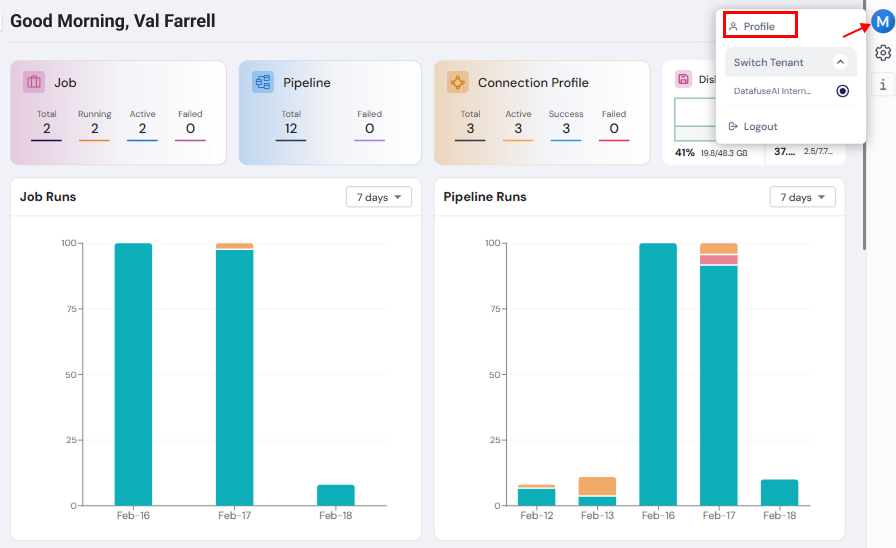
User Profile Management
Each user has a User Profile Info that contains essential details such as:
- Basic Information: Name, email, username, and user group.
- Status: The current status of the user (e.g., Active, Inactive).
Profile Actions:
- Edit Profile: Users can update their profile information, such as email, username, and password.
- Change Password: Users can change their password by providing the current password, new password, and confirm password.
Password Management:
-
There are enforced password policies, such as requiring:
- At least 8 characters,
- Uppercase and lowercase letters,
- Numbers and special characters,
- No white spaces.
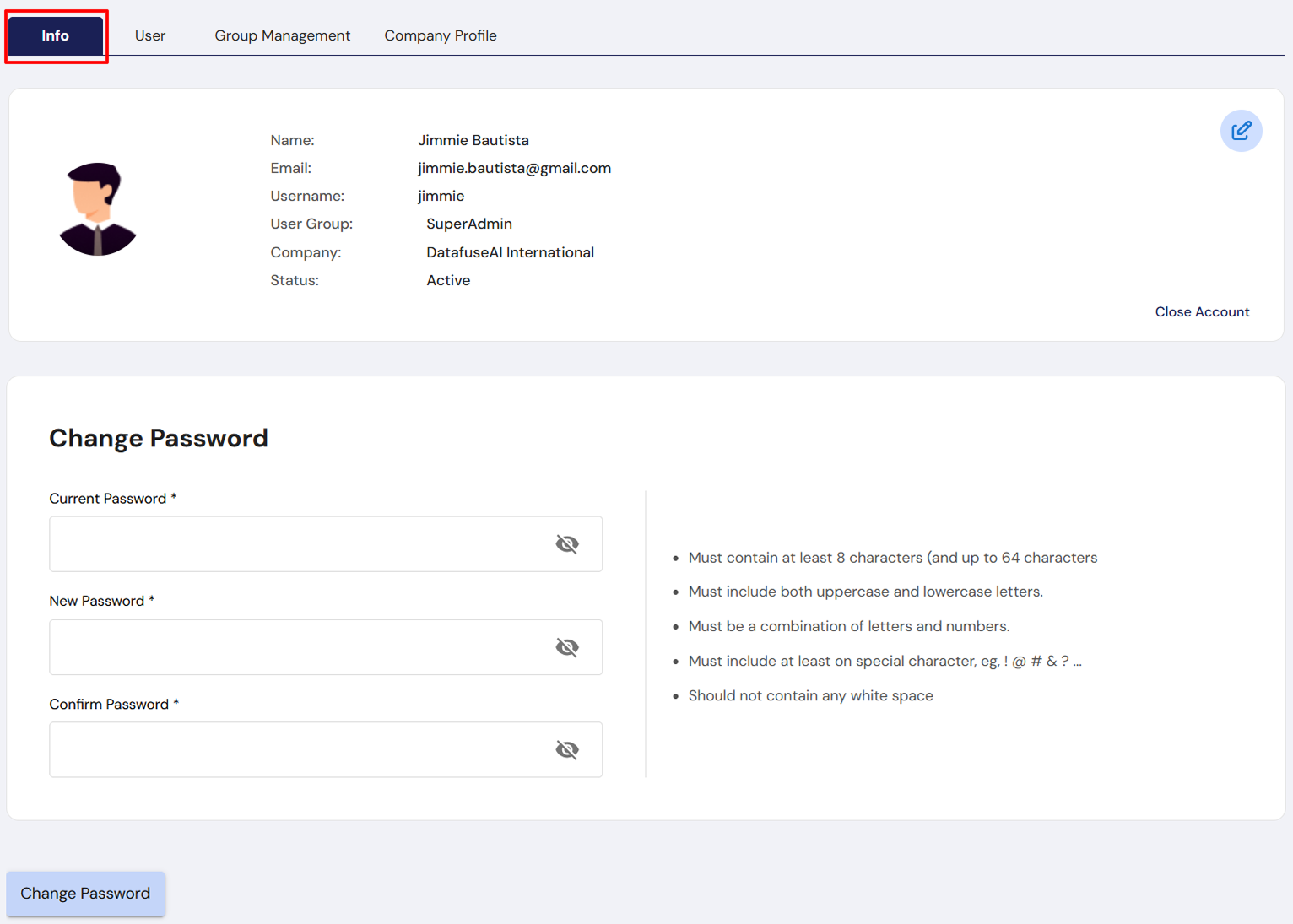
Normal Users can only see the profile info, while only the SuperAdmin can access user, group, and company profile management.
Managing Users
The User Management Page is where the SuperAdmin can manage all users within the tenant. Here, users are listed along with their name, email, assigned group, and status.
Available User Actions:
-
Invite New User:
- The SuperAdmin can invite new users by entering their email and assigning them to a group.
- Once the invitation is accepted, the user gains access to the system.
-
Edit User:
- Clicking the edit button allows the SuperAdmin to update a user's email, group, or status.
-
Delete User:
- The SuperAdmin can delete users, which revokes their access to the system.
-
View User List:
- The User List section displays all users, with key details like Name, Email, Group, and Status (Active or Inactive).
- Search Bar: Users can be filtered by name or email, making it easier to manage large numbers of users.
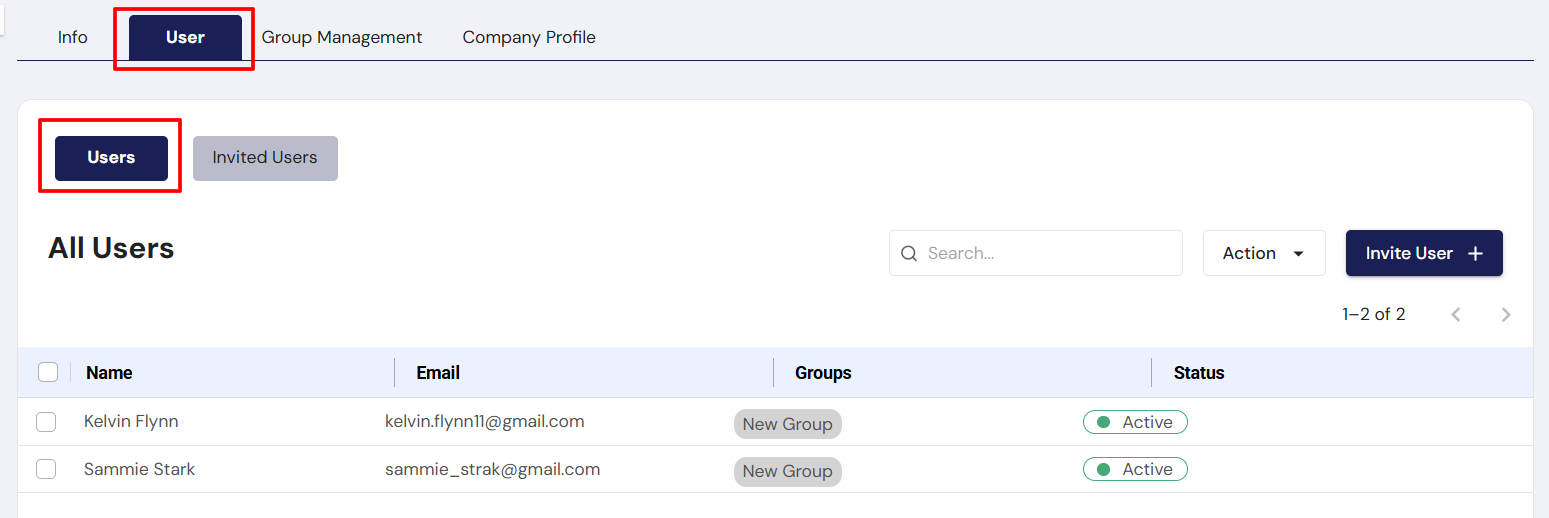
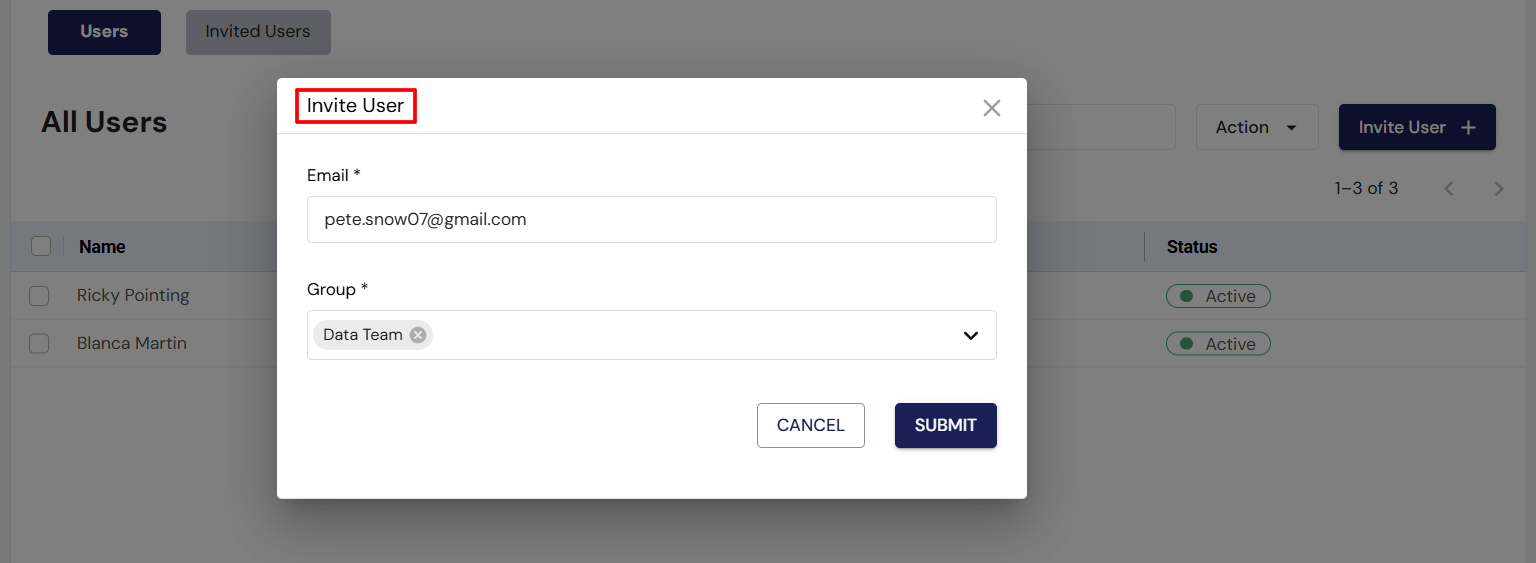
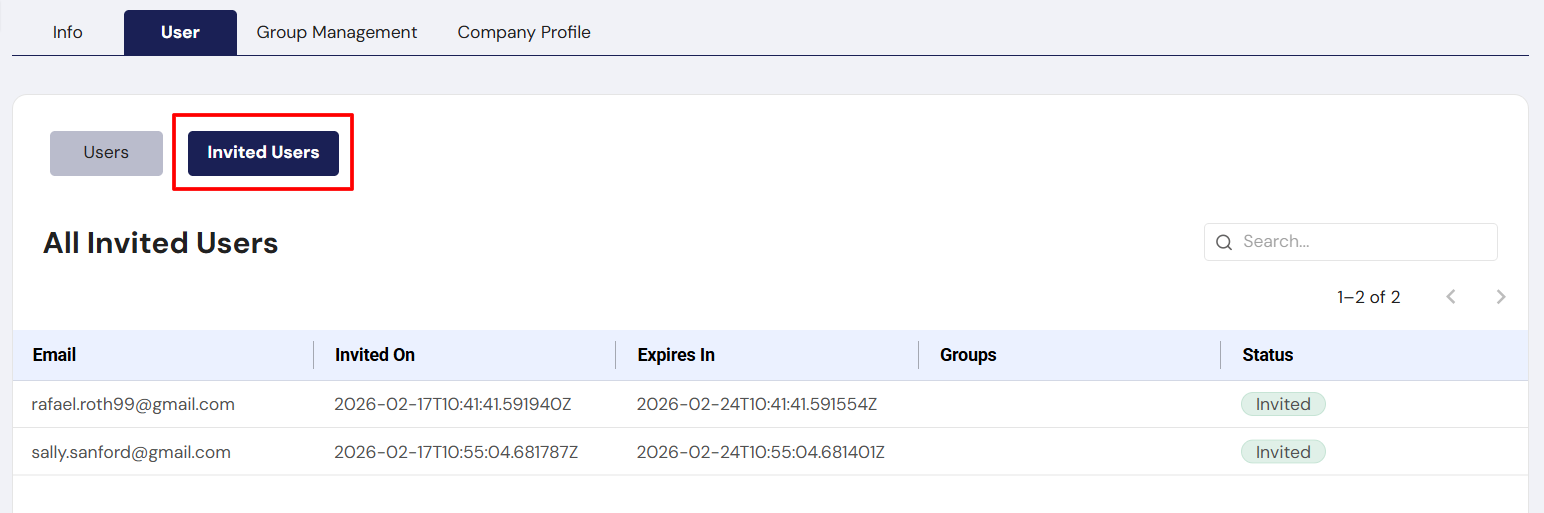
Invited Users
The Invited Users tab shows users who have been invited to the system but have not yet accepted the invitation. This section includes details like:
- Email: The email address of the invited user.
- Invited On: The date and time when the invitation was sent.
- Expires In: The expiration date of the invitation.
- Group: The group assigned to the invited user.
SuperAdmin Actions:
- The SuperAdmin can resend invitations or delete expired ones.
Groups Overview
What is a Group?
Groups are collections of permissions in DataFuse AI. By assigning users to specific groups, the SuperAdmin can control what users can do within the platform (e.g., View, Edit, Delete, Create).
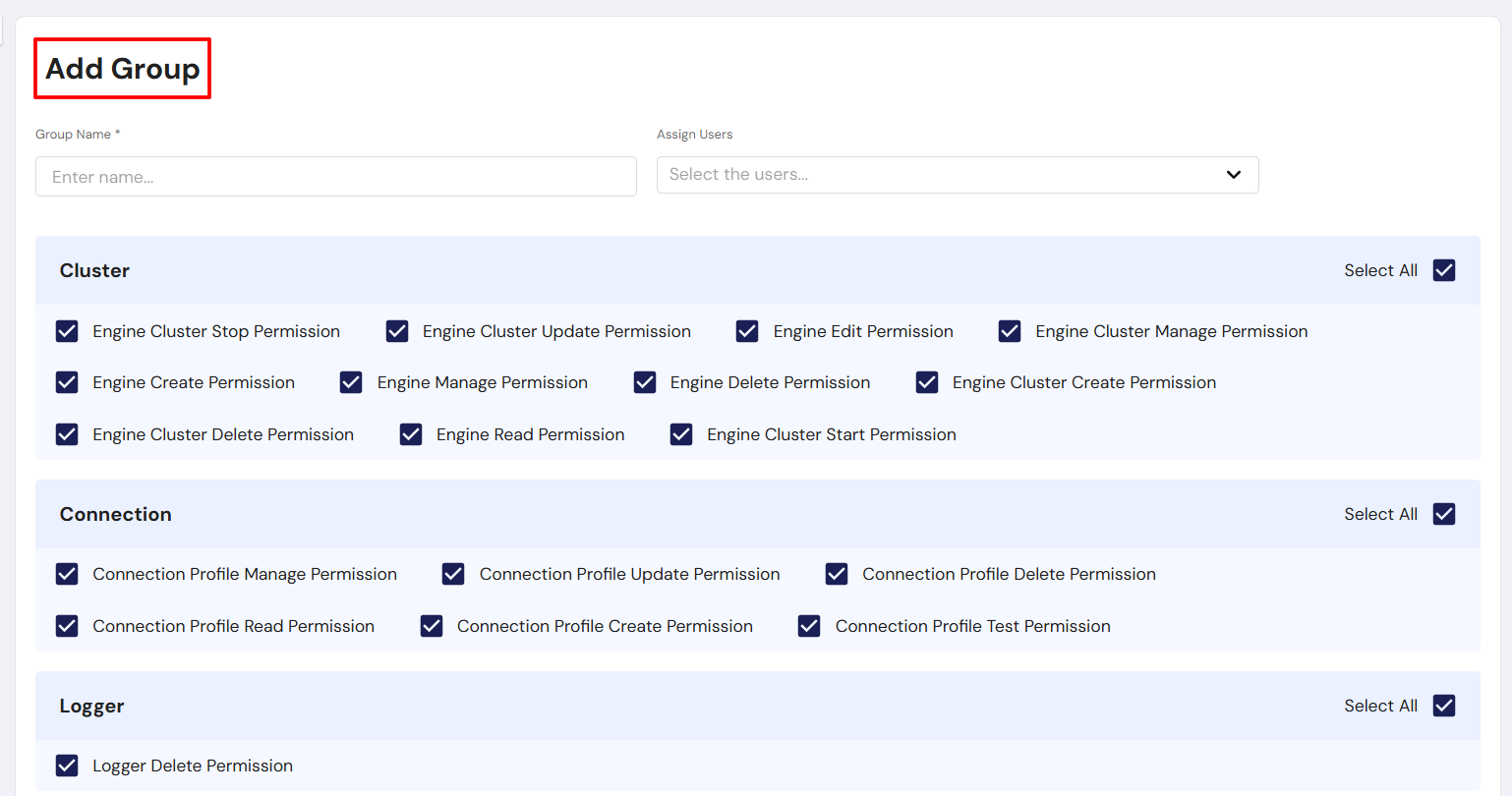
Each group has its own set of permissions, which can be customized for each platform module.
Assigning Users to Groups:
- Users can belong to one or more groups. Group membership determines the permissions that users have in the platform.
Permission Levels:
-
Granular Permissions: Permissions are broken down by platform modules, including:
- Dashboard: Read-only or full access to dashboards.
- Connection: Create, read, update, and delete connection profiles.
- Pipeline: Permissions to create, run, share, or delete pipelines.
Group Management
Create New Group:
- The SuperAdmin can create a new group by defining the Group Name and selecting the permissions for various modules.
- Permissions can be set for areas like Dashboard, Pipeline, Connection, Engine & Cluster, etc.
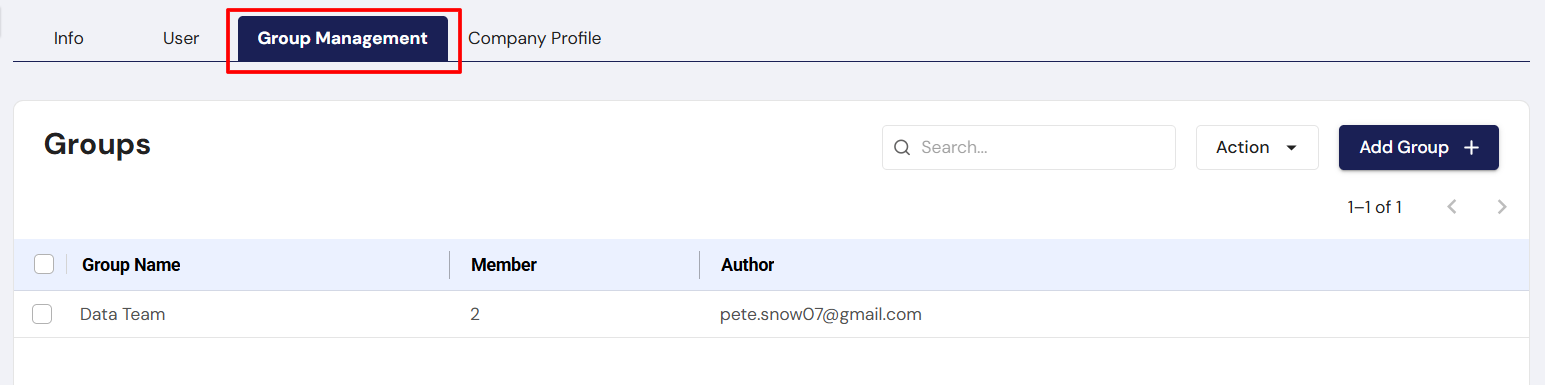
Managing Groups:
- Groups List: The Groups Management Page displays a list of all groups, along with the number of members in each group and the author (creator of the group).
Group Actions:
- Edit Group: Modify a group's name or permissions.
- Delete Group: Remove a group from the system.
- Assign Permissions: Permissions can be assigned to groups for various modules like Dashboard, Connection Profiles, Pipelines, and Engines.
Key Functionalities in User & Group Management Pages
Tabs: The User & Group Management Pages are divided into several tabs for easy navigation:
- Users: Displays all users in the tenant.
- Invited Users: Displays users who have been invited but haven't accepted their invitations.
- Group Management: Provides an overview of all groups, their members, and permissions.
Search Function:
- A search bar allows the SuperAdmin to search for users or groups by name or email address, making it easier to manage large numbers of users and groups.
Actions:
- Each user or group has an action dropdown that includes options to edit, delete, or manage permissions.
Permissions and Roles
-
Role-Based Access Control (RBAC):
-
Users are assigned roles that dictate what actions they can perform within the platform. For example:
- SuperAdmin: Full control over all aspects of the tenant.
- Admin/Manager: Limited permissions for managing users and groups.
- Users: Limited to specific roles based on their group memberships.
-
-
Granular Permissions:
- Permissions can be customized for specific modules, such as Dashboard, Connection Profiles, Pipelines, Engines, etc.
- The SuperAdmin defines permissions during group creation or when assigning roles to users.
User Edit and Management Interface
-
The Edit User window allows the SuperAdmin to update the user's email and group assignments. Example Screenshot:
- Edit User Modal: Provides fields to modify a user's email and group, with a Submit button to save changes.
Company Profile Management
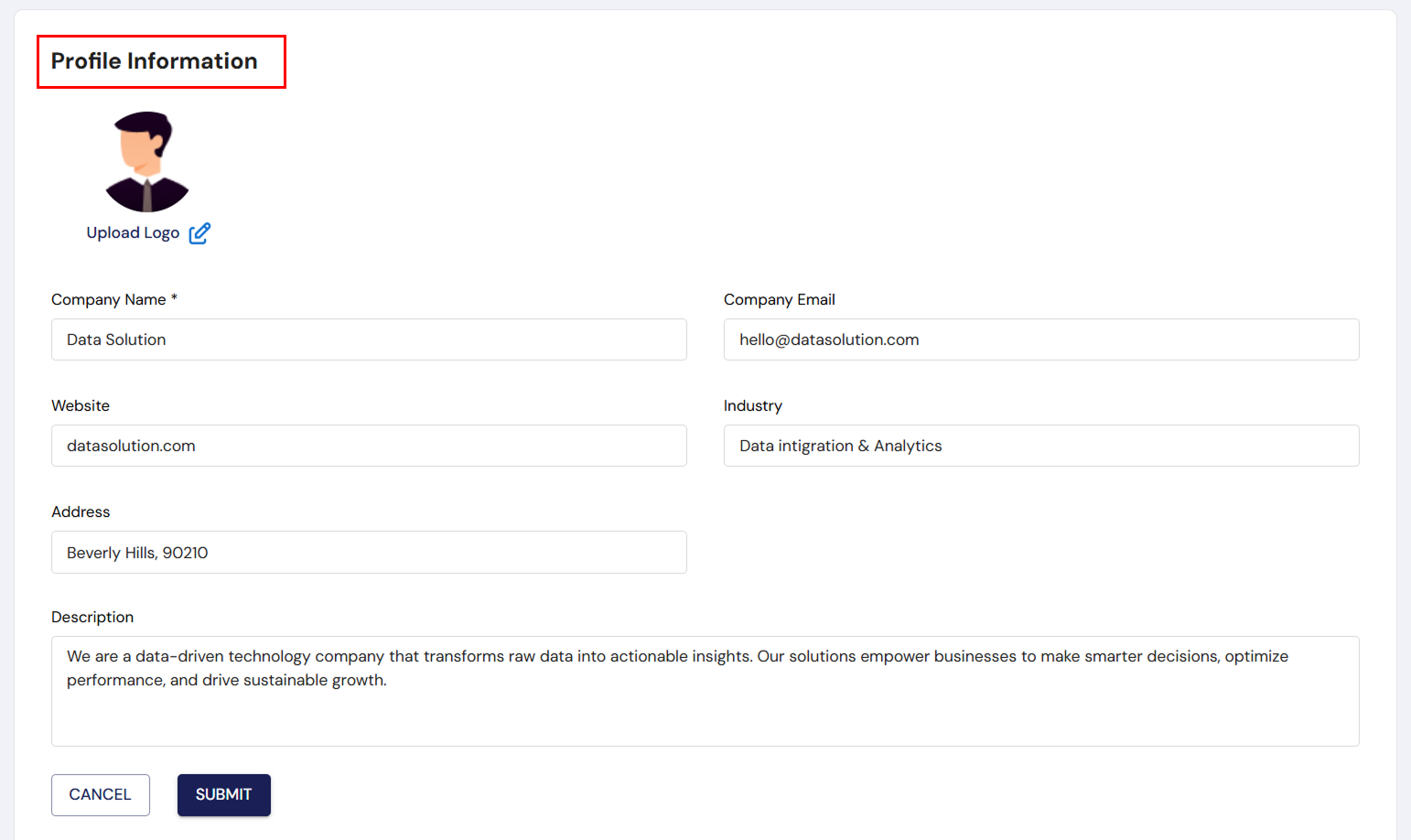
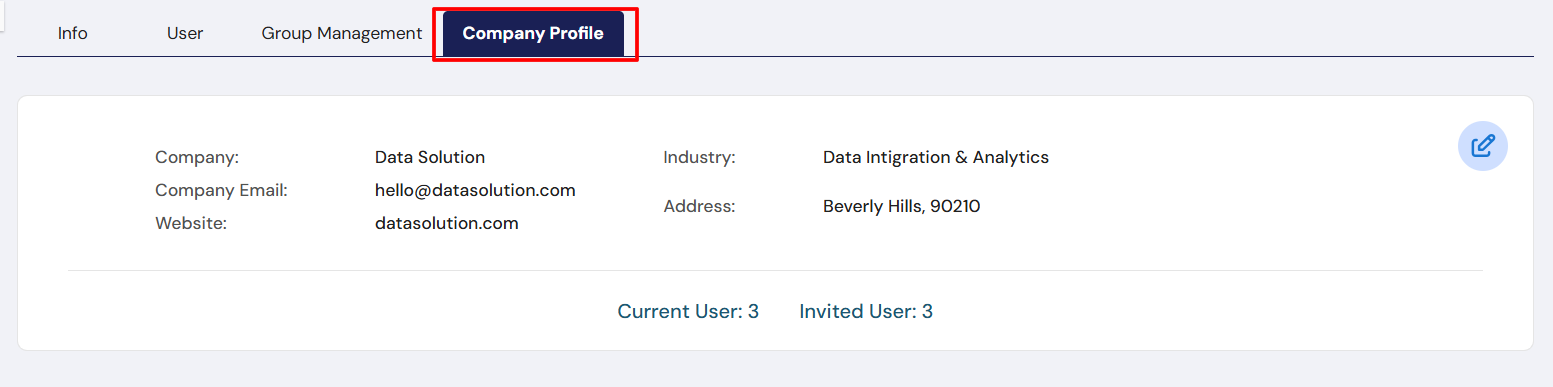
The Company Profile section allows the SuperAdmin to manage the organizational details for the tenant. This includes:
- Company Name: The official name of the organization (e.g., AZMINDS).
- Company Email: The official email for company communications.
- Website: The company's website address.
- Industry: The type of industry the company operates in.
- Address: The physical address of the company.
The SuperAdmin can update the company profile information, such as the company name, website, industry, address, and logo.
Conclusion
In DataFuse AI, the SuperAdmin plays a crucial role in managing tenants, users, and groups. The User Management interface makes it easy to manage user access, roles, and profile details, while the Group Management interface provides a simple way to organize users and assign permissions. With Role-Based Access Control (RBAC), SuperAdmins can fine-tune user permissions and ensure that each user has the right level of access to the platform’s features. This system enables efficient, secure collaboration within the platform, making it easier to manage large teams and complex workflows.
This detailed guide covers the tenant, user, and group management features in DataFuse AI, ensuring a smooth and efficient experience for administrators and users alike.