Audit Log
1. Overview of the Module
1.1 Introduction
The Audit Log module is your tenant's system of record for activity. It captures a chronological, read-only trail of who did what, to which resource, and when—across modules such as Engine, License Management, Users, Groups, and more.
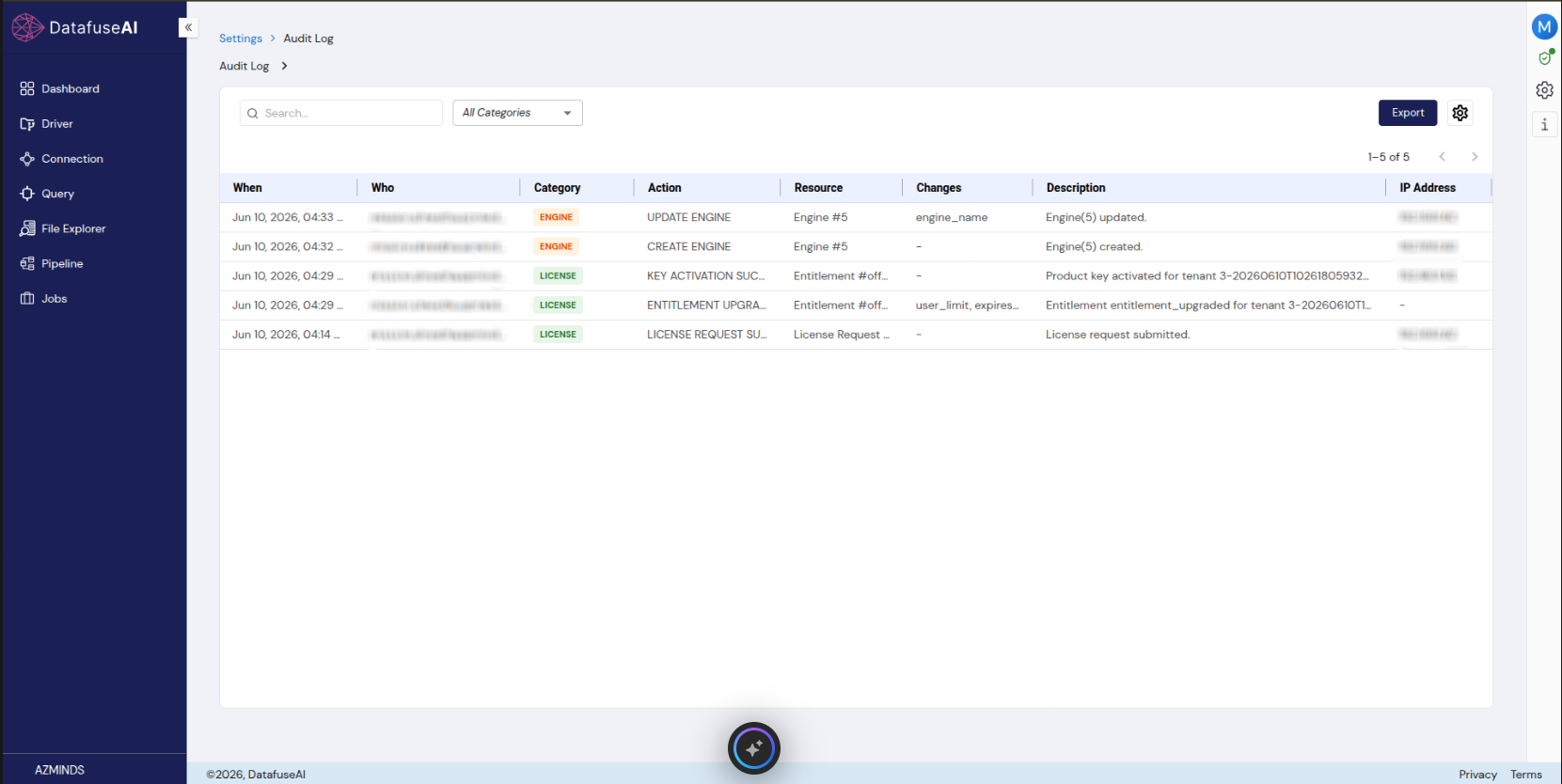
Each entry records the actor, the category and action, the affected resource, a human-readable description, and—when a change occurs—the exact field-level before/after values. Where the Dashboard's "Recent Activities" feed gives a quick glance at the latest changes, the Audit Log is the complete, searchable, exportable record built for security, accountability, and compliance.
1.2 Why is it Important?
Significance:
In a multi-user platform that handles sensitive data, being able to answer "who changed this, and when?" is essential. The Audit Log provides that accountability automatically—no one has to remember to record anything. It underpins security investigations, supports regulatory compliance, and builds trust in your data and workflows.
Problems it Solves:
- Accountability gaps: Every consequential action is attributed to a specific user, with email, name, and roles.
- Security blind spots: Unexpected updates, deletions, or license activations become visible and investigable.
- Compliance evidence: Regulations such as SOX, HIPAA, and GDPR expect retained, demonstrable records of access and change. The Audit Log produces that evidence on demand.
- Troubleshooting context: When something breaks, the trail shows what configuration changed, who changed it, and the precise old/new values.
1.3 Key Features in the Module
Feature 1: Comprehensive Event Capture
Records actions across every module—for example CREATE ENGINE, UPDATE ENGINE, LICENSE REQUEST SUBMITTED, KEY ACTIVATION SUCCESS, and ENTITLEMENT UPGRADE.
Feature 2: Search & Category Filter
A search box and an All Categories filter let you quickly narrow the trail to the events that matter.
Feature 3: Field-Level Change Tracking
The Changes column lists the fields that changed, and the Log Details drawer shows each change as Field / Old Value / New Value.
Feature 4: Detailed Event Inspection
Clicking a row opens a Log Details drawer with the full record—Who, What, Which Resource, When & Where, Details, and Changes.
Feature 5: Export
Export the audit trail for offline analysis and compliance evidence.
1.4 Real-World Usage
- Security investigation: An administrator sees an engine was modified and uses the Changes detail to confirm
engine_namewas changed from Databricks Engine to Databricks, and by whom. - License audit: A compliance reviewer filters to the LICENSE category to confirm when a key was activated and an entitlement upgraded.
- Change forensics: After a job starts failing, an engineer checks which connection or engine was updated just before the first failure.
- Regulatory audit: The team exports the trail for a requested period as evidence.
2. Module Concepts
2.1 Audit Event (Log Entry)
An Audit Event is a single, read-only record describing one action. Every event answers: who performed it, what they did (category + action), which resource it affected, when and from where it happened, a description, and any changes.
2.2 Who (Actor)
The Who of an event identifies the user who performed it. In the Log Details drawer this includes:
- Name
- Roles (e.g., SuperAdmin)
System-initiated actions (such as a scheduled job run) are attributed to the system.
2.3 What (Category & Action)
- Category: The platform area the event belongs to, shown as a colored chip—for example ENGINE or LICENSE.
- Action: The specific operation, such as
CREATE ENGINE,UPDATE ENGINE,LICENSE REQUEST SUBMITTED,KEY ACTIVATION SUCCESS, orENTITLEMENT UPGRADE.
2.4 Which Resource
The Resource is the specific object the action affected—for example Engine #5, an Entitlement, or a License Request—so the action can be traced to a concrete item.
2.5 When & Where
Each event records:
- Local Time and UTC timestamps,
- IP Address of the actor,
- Tenant ID.
2.6 Description
A human-readable summary of the event—for example "Engine(5) updated.", "Engine(5) created.", "Product key activated for tenant …", "Entitlement entitlement_upgraded for tenant …", or "License request submitted." The description can be copied from the Log Details drawer.
2.7 Changes (Old / New Values)
For events that modify data, the Changes column lists the affected field names (e.g., engine_name; or user_limit, expires_at), and Log Details shows each as a row of Field / Old Value / New Value. When nothing is changed (e.g., a create or a request), the column shows -.
2.8 Categories
Events are grouped by Category so you can filter the trail by area of the platform. Observed categories include ENGINE and LICENSE; categories correspond to the platform's major modules. The full set available to your tenant is shown in the All Categories dropdown.
2.9 Audit Log vs. Dashboard "Recent Activities"
| Aspect | Audit Log | Dashboard Recent Activities |
|---|---|---|
| Purpose | Security, accountability, compliance | At-a-glance awareness |
| Scope | Complete, all modules | A short list of latest actions |
| Depth | Full metadata + field-level old/new values | Summary line per action |
| Tools | Search, category filter, export | Minimal |
Use the Dashboard feed for quick awareness, and the Audit Log for investigation and evidence.
3. Accessing the Audit Log
- Click the Settings (gear) icon in the top-right corner of the application.
- Select Audit Log (breadcrumb: Settings → Audit Log).
The default view lists your tenant's events, newest first.
By default the SuperAdmin can view the Audit Log. Other users can be granted access through a group permission. Because audit data is sensitive, access is typically limited to administrators, security, and compliance roles.
4. Module UI Components and User Actions
4.1 The Audit Log List
The central table lists events with these columns:
| Column | Description |
|---|---|
| When | Date and time of the event (e.g.,Jun 10, 2026, 04:33 …). |
| Who | The user who performed the action. |
| Category | The platform area, shown as a chip (e.g.,ENGINE, LICENSE). |
| Action | The operation (e.g.,UPDATE ENGINE, KEY ACTIVATION SUCCESS). |
| Resource | The affected object (e.g.,Engine #5). |
| Changes | The fields that changed (e.g.,engine_name), or -. |
| Description | A human-readable summary (e.g.,"Engine(5) updated."). |
| IP Address | The source IP of the actor. |
- User Action: Click any row to open its Log Details.
4.2 Search, Category Filter, Export & Pagination
- Search: Free-text search across the trail.
- All Categories: A dropdown that filters events to a single category (e.g., only LICENSE events).
- Export: Downloads the audit trail for offline analysis and compliance.
- Settings (gear): Adjusts the Audit Log view.
- Pagination: A "1–N of N" counter with previous/next arrows to move through results.
4.3 Log Details Drawer
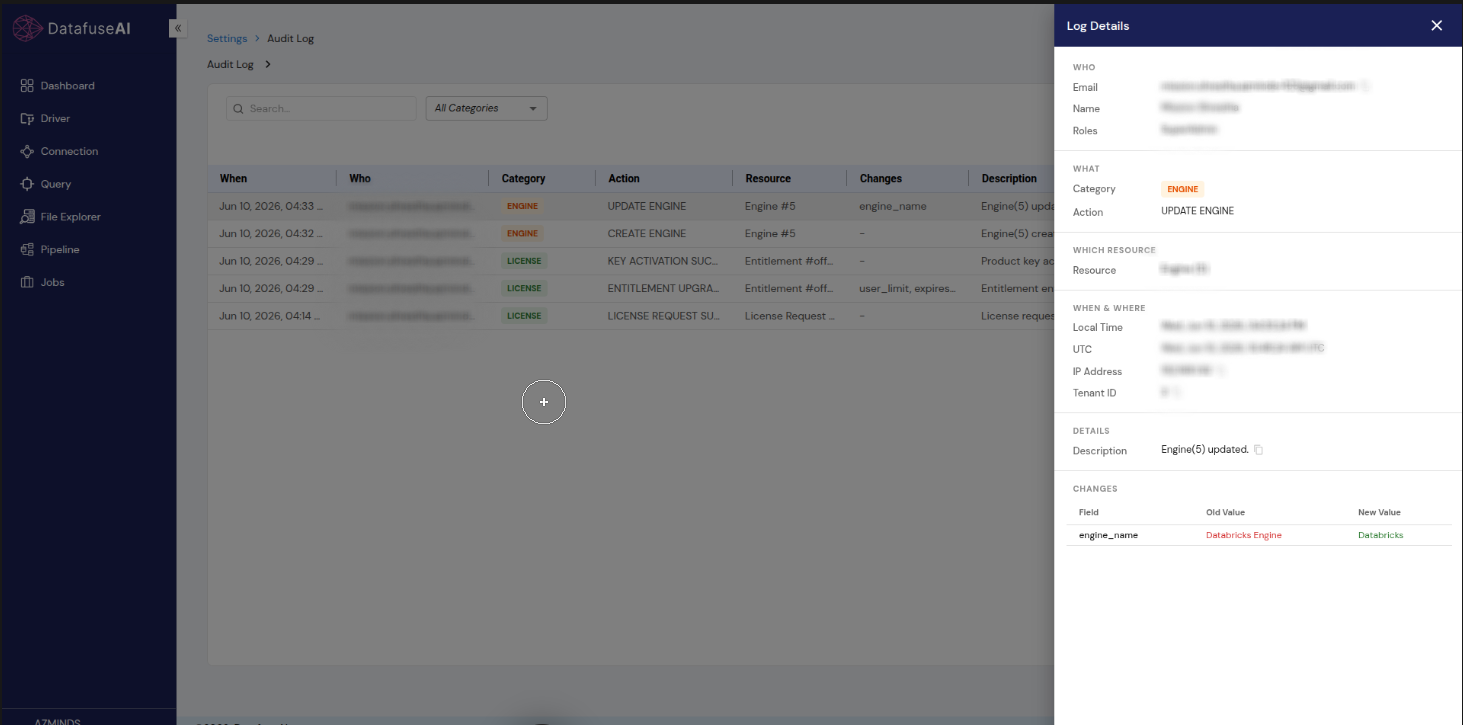
Clicking an event opens the Log Details drawer on the right, organized into clear sections:
- WHO — Email, Name, Roles.
- WHAT — Category (chip) and Action.
- WHICH RESOURCE — the affected resource (e.g., Engine #5).
- WHEN & WHERE — Local Time, UTC, IP Address, Tenant ID.
- DETAILS — the Description (with a copy button).
- CHANGES — a table of Field / Old Value / New Value (e.g.,
engine_name: Old Databricks → New Databricks). - User Action: Read the full context to understand exactly what happened; copy the description or note the old/new values for your investigation or report.
5. Standard User Flow
5.1 Open the Audit Log
From the top-right, click Settings → Audit Log. The newest events appear first.
5.2 Narrow the Trail
Use the All Categories filter and the Search box to focus on the events relevant to your question (for example, only LICENSE events, or a search for a specific resource).
5.3 Inspect an Event
Click a row to open Log Details and read the full record—including the Field / Old Value / New Value changes.
5.4 Act on the Findings
Correct a misconfiguration in the originating module, adjust a user's permissions, or escalate a security concern.
5.5 Export for the Record
If the events are needed as evidence, Export the trail and store it per your organization's retention policy.
6. Crucial Guides for Users
6.1 Filtering by Category
- Open Settings → Audit Log.
- Open the All Categories dropdown and choose a category (e.g., LICENSE or ENGINE).
- The list updates to show only events in that category.
6.2 Searching for a Specific Event
- Type a keyword—such as a resource name or action—into the Search box.
- Review the filtered rows and click one to open Log Details.
6.3 Inspecting What Changed
- Click an event with values in the Changes column (e.g.,
engine_name). - In Log Details, read the CHANGES table to see each field's Old Value and New Value (e.g., Old Databricks → New Databricks).
6.4 Exporting the Audit Trail
- Apply any search/category filters that define your scope.
- Click Export.
- Store the export securely according to your retention policy.
7. Common Troubleshooting in the Module
Issue 1: I can't find an event I expected
- Cause: A category filter or search term is hiding it.
- Solution: Reset the All Categories filter to show everything and clear the Search box, then use pagination to browse.
Issue 2: The Changes column shows "-"
- Cause: The event didn't modify field values (for example a create action or a license request).
- Solution: This is expected. Open Log Details to read the Description for context.
Issue 3: Timestamps look different from my clock
- Cause: Events store both Local Time and UTC.
- Solution: Use the Log Details drawer, which shows both, and reconcile against UTC when correlating across systems.
7.1 FAQ
Can audit entries be edited or deleted?
No. The Audit Log is a read-only record, which is what makes it trustworthy as evidence.
What information does an event capture?
Who (email, name, roles), what (category + action), which resource, when & where (local time, UTC, IP, tenant ID), a description, and field-level changes where applicable.
Are license actions recorded?
Yes—events such as LICENSE REQUEST SUBMITTED, KEY ACTIVATION SUCCESS, and ENTITLEMENT UPGRADE appear under the LICENSE category.
Is this the same as the Dashboard's "Recent Activities"?
No. Recent Activities is a brief feed; the Audit Log is the complete, searchable, exportable record. See the comparison.
Who should have access?
Typically administrators, security, and compliance roles—granted via group permissions.
8. Conclusion of the Module
8.1 Summary
The Audit Log is DataFuse AI's accountability backbone. By automatically recording who did what—down to the exact old and new values of each changed field—across every module, it gives administrators the visibility to investigate incidents, review access, and satisfy auditors. With search, category filtering, a detailed Log Details drawer, and export, the Audit Log turns a stream of activity into trustworthy, actionable insight.
8.2 Best Practices
- Restrict access to administrators, security, and compliance roles.
- Export periodically to preserve history for compliance.
- Filter before exporting so evidence packages contain exactly the right scope.
- Use Log Details to confirm field-level changes when investigating.
9. What's Next After This Module?
9.1 Related Modules
- Data Governance: The Audit Log realizes governance's "auditable pipelines, queries, and jobs"—supporting GDPR, HIPAA, and SOX.
- License Management: License requests, key activations, and entitlement upgrades are captured here.
- Tenant, User & Groups: Permission changes you review here are configured in RBAC.
- Dashboard: Use Recent Activities for quick awareness, then pivot to the Audit Log for depth.
9.2 Next Steps
- Decide who should have Audit Log access via group permissions.
- Establish an export cadence aligned to your compliance requirements.
- Read Data Governance to see how audit evidence fits the broader framework.